Anvil App Preview
Document Metadata
Category: Development → Anvil → IDE
Audience: Frontend Developers, Full-Stack Developers, Solution Engineers, Technical Teams
Difficulty: Beginner to Intermediate
Time Required: 10–15 minutes
Prerequisites: Access to a ConnexCS account, an Anvil project containing frontend resources, and the Anvil IDE.
Related Topics: Document Guide — documentation standards, Getting Started — signing in and project selection, Anvil IDE Interface — workspace overview, Anvil Apps — frontend development, ScriptForge — backend scripting.
Next Steps: Preview frontend components, switch between Vue files, refresh the application, open previews in a browser, edit script metadata, copy endpoint URLs, insert code snippets, and access the relevant documentation for your application.
Overview
The Anvil App Preview allows you to render and test frontend applications directly within the Anvil IDE.
It provides a live preview environment for Vue components, enabling developers to validate UI changes, switch between previewed files, refresh the application, and open previews in an external browser.
The preview also includes quick access to script metadata, endpoint URLs, code snippets, and related documentation, streamlining the frontend development workflow.
Opening the Preview
- Click the $(globe) Preview Anvil App button in the ConnexCS sidebar or editor toolbar to open the default preview (loads your app's
App.vueentry point). - Right-click any
.vuefile in the Explorer and choose Open in Preview to preview that specific file.
Multiple Preview Tabs
You can have multiple preview tabs open at the same time. Each new Open in Preview action opens a new tab in the right-side panel.
Switching Files Within a Preview Tab
Each preview tab has a file selector button in its toolbar (showing the current file name with a ▾ arrow). Click it to choose a different file to display in that tab without opening a new one.
Refresh and External
Each preview panel also has: - ↻ Reload — refreshes the embedded preview - ⧉ Open in browser — opens the preview URL in your default browser
More Options
-
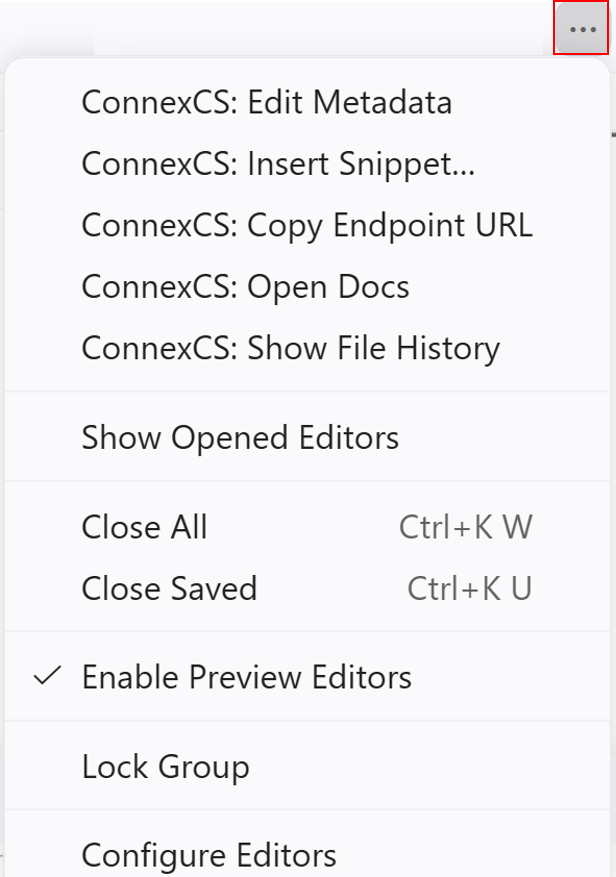
Script Metadata: Click the ··· menu in the editor toolbar (or the overflow menu on the script tab) to open Edit Metadata. From here you can update the script's name and other properties stored in ConnexCS.
-
Endpoint URL: If your script is exposed as an HTTP endpoint, use Copy Endpoint URL from the toolbar overflow menu to copy the URL. You can then test it with curl or Postman.
-
Code Snippets: Use Insert Snippet from the overflow menu to browse and insert ready-made code templates for common ConnexCS patterns (socket listeners, API calls, etc.).
-
Documentation: Click Open Docs in the overflow menu to open the documentation page for the active script.